
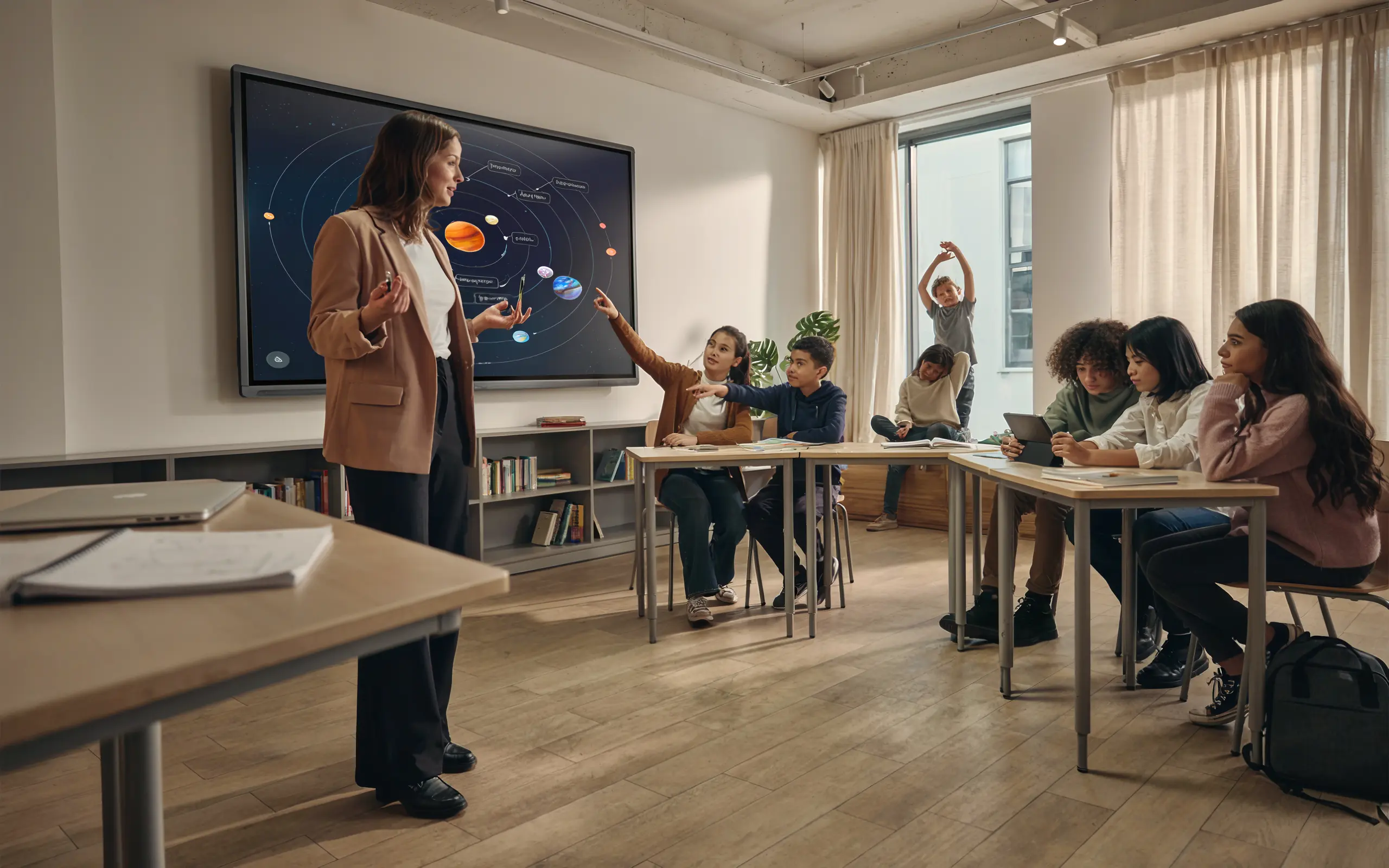
Interactive displays have quietly become the center of the modern classroom. They have replaced the projector-and-screen setup that dominated for two decades, and for good reason: they are brighter, sharper, need no bulbs to replace, and let students interact directly with the lesson instead of watching from a distance.
But “interactive display” covers a wide range of products, and the wrong choice is an expensive mistake to live with for the next seven years. This guide walks through how to pick the right screen size, which features actually matter in a classroom, and the costs that show up after the panel is on the wall.
What is an interactive display?
An interactive display is a large touchscreen, usually 65 to 86 inches, that combines a high-resolution monitor, a built-in computer, and multi-touch capability in a single unit. Teachers write on it, open apps, cast student devices to it, and run entire lessons from the screen. Think of it as a giant tablet built for the front of a room.
Unlike older interactive whiteboards that needed a separate projector and constant recalibration, a modern interactive flat panel is self-contained. You turn it on and it works.
Choosing the right size: 65″, 75″, or 86″
Screen size should be driven by the depth of the room, not personal preference. The guiding principle is simple: the students in the back row need to read the screen without squinting.
A practical rule of thumb for the minimum size based on how far the farthest student sits:
- 65″ works for smaller rooms where the back row is within about 20 feet.
- 75″ suits standard classrooms with a back row around 25 feet away.
- 86″ is best for large rooms, lecture spaces, and any room where the farthest seat is 30 feet or more, or where fine detail like text and equations needs to stay legible.
When in doubt, size up. A screen that is slightly too large is a minor issue; one that is too small leaves students in the back disengaged, which defeats the entire purpose of the upgrade.
The features that actually matter
Spec sheets are long. Most of it is noise. These are the specifications worth checking:
- 4K resolution. At these screen sizes, 4K keeps text and detail crisp. Anything lower will look soft up close.
- Touch points. Look for at least 20 simultaneous touch points so multiple students can work at the board together.
- Brightness and anti-glare. Classrooms have windows. A matte, anti-glare surface and strong brightness keep the screen readable in daylight.
- Wireless casting. Teachers and students should be able to share their device screens without cables. This is what turns the display from a fancy TV into a collaboration tool.
- Durability. Toughened, anti-scratch glass matters in a room full of students.
- Connectivity. Enough HDMI and USB-C ports to connect a laptop, document camera, and other classroom devices without adapters.
Don’t overlook the writing ecosystem
The display is one half of the setup. The other half is how students capture and contribute. Networked smart pen and notebook sets let students take notes that sync digitally and cast their work to the front of the room, so a lesson becomes a two-way exchange rather than a lecture. If active, student-driven learning is the goal, this ecosystem is what gets you there.
Wall mount or mobility stand?
Fixed wall mounts are clean and permanent, ideal for dedicated classrooms. Mobility stands let a single display serve multiple rooms or move between spaces, which stretches your budget if you are equipping a campus in phases. Many schools use a mix: fixed mounts in core classrooms, stands in shared or flexible spaces.
The cost that isn’t on the price tag
The panel is the visible cost. The real cost of a working classroom includes professional installation and structural mounting, network setup and calibration, teacher training, and ongoing support and software updates. A display that arrives in a box and sits unused because no one had time to mount and configure it is not a bargain.
This is why complete packages, where installation, training, and support are bundled with the hardware, tend to deliver a far better outcome than buying panels alone. The classroom is operational on day one instead of becoming a project for your already-stretched IT staff.
Key takeaways
- Size the screen to the room, not the budget line. Back-row legibility is the test.
- Prioritize 4K, multi-touch, anti-glare, and wireless casting; ignore the rest of the spec sheet.
- Pair the display with a writing ecosystem if you want genuine student collaboration.
- Budget for installation, training, and support, not just the panel.
Choosing well the first time means the technology gets used every day for years, which is the only measure of a good classroom investment.
Frequently Asked Questions
What size interactive display is best for a classroom?
For a standard classroom, a 75″ display works well, with the back row around 25 feet from the screen. Smaller rooms can use 65″, and larger rooms or lecture spaces should use 86″. The rule is that the farthest student must be able to read the screen comfortably.
What is the difference between an interactive display and an interactive whiteboard?
An interactive whiteboard relies on a separate projector and often needs recalibration. A modern interactive display is a self-contained touchscreen with a built-in computer and no projector, so it is brighter, sharper, and far lower maintenance.
How long do interactive displays last?
A quality commercial interactive display is typically rated for a lifespan of around seven years or more of daily classroom use, which is one reason schools plan the purchase around a multi-year budget cycle or lease term.
Do teachers need training to use interactive displays?
Yes. The hardware is only as valuable as teachers’ comfort with it. Hands-on onboarding before the school year begins is what determines whether the displays get used daily or sit idle, so training should be part of any rollout.
Can students connect their own devices to the display?
With wireless casting, teachers and students can share their device screens to the display without cables, which is what enables collaborative, student-driven lessons rather than one-way instruction.